admin
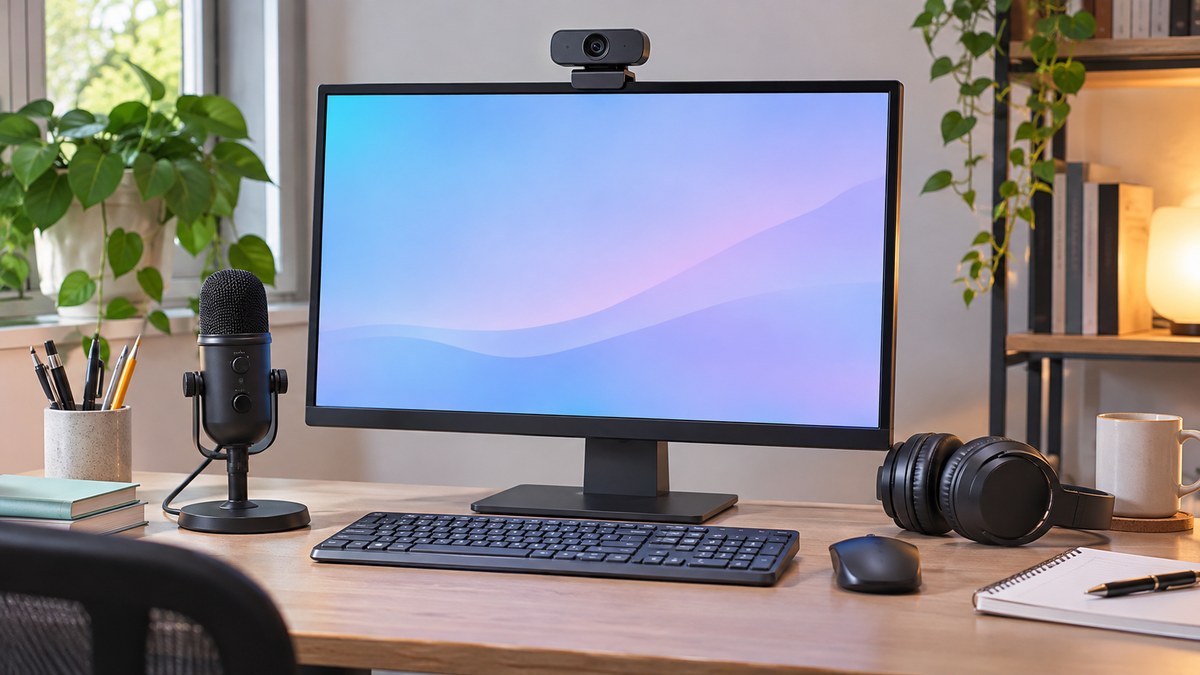
A successful video call depends on being easy to hear and see. A higher-resolution camera can help in some situations, but it does not fix an echoing room, a bright window behind you, or an overloaded connection. A short test before an important meeting can reveal the part that actually needs attention.

Start with the microphone
Record a short sample using the microphone you plan to use. Speak at your normal volume and include a few seconds of silence. Listen for room echo, fan noise, keyboard taps, and sudden changes in volume. Check that the application selected the intended microphone rather than a distant webcam or monitor microphone.
Move the microphone closer while keeping it outside the camera frame if possible. Use a stable position and avoid touching the desk or cable unnecessarily. Headphones can help prevent loudspeaker audio from returning through the microphone. Keep listening volume comfortable and test the complete setup again.
Make the lighting simple
Sit where light reaches your face from the front or slightly to the side. A bright window directly behind you can make your face appear dark. Adjust the room or your position before assuming the camera needs replacement. An ordinary lamp may help, provided it is placed safely and does not create distracting glare.
Raise the camera to a practical height and clean the lens according to the device instructions. Frame your head and shoulders with a little space above. Check the actual preview, because the angle that feels right at the desk may look different on screen.
Reduce avoidable connection pressure
Pause nonessential large downloads or uploads before the meeting. If possible, compare a wired connection with Wi-Fi. When using wireless networking, try a location with more reliable coverage rather than relying only on the signal icon.
If audio breaks up, temporarily reducing video demands can be a useful troubleshooting step. Change one setting at a time so you can tell whether it helps. A problem affecting everyone in the meeting may have a different cause from a problem affecting only one participant.
Prepare the material you will share
Open the required document in advance and close unrelated windows. Review desktop notifications before screen sharing. Prefer sharing the specific application window when that meets your needs, and verify what participants can actually see. Keep private messages, account details, and unrelated documents out of the presentation area.
Finally, have a simple fallback: the meeting link, an alternate audio option supported by the service, or a way to send the relevant document. Clear sound, balanced light, and a predictable setup usually matter more than an impressive collection of accessories.